Users & Groups
Linux is a multi-user system. Many people (and services) can use the same machine safely. In this chapter you'll learn about user types, how to manage users and groups, and how to use sudo.
What are users and groups?
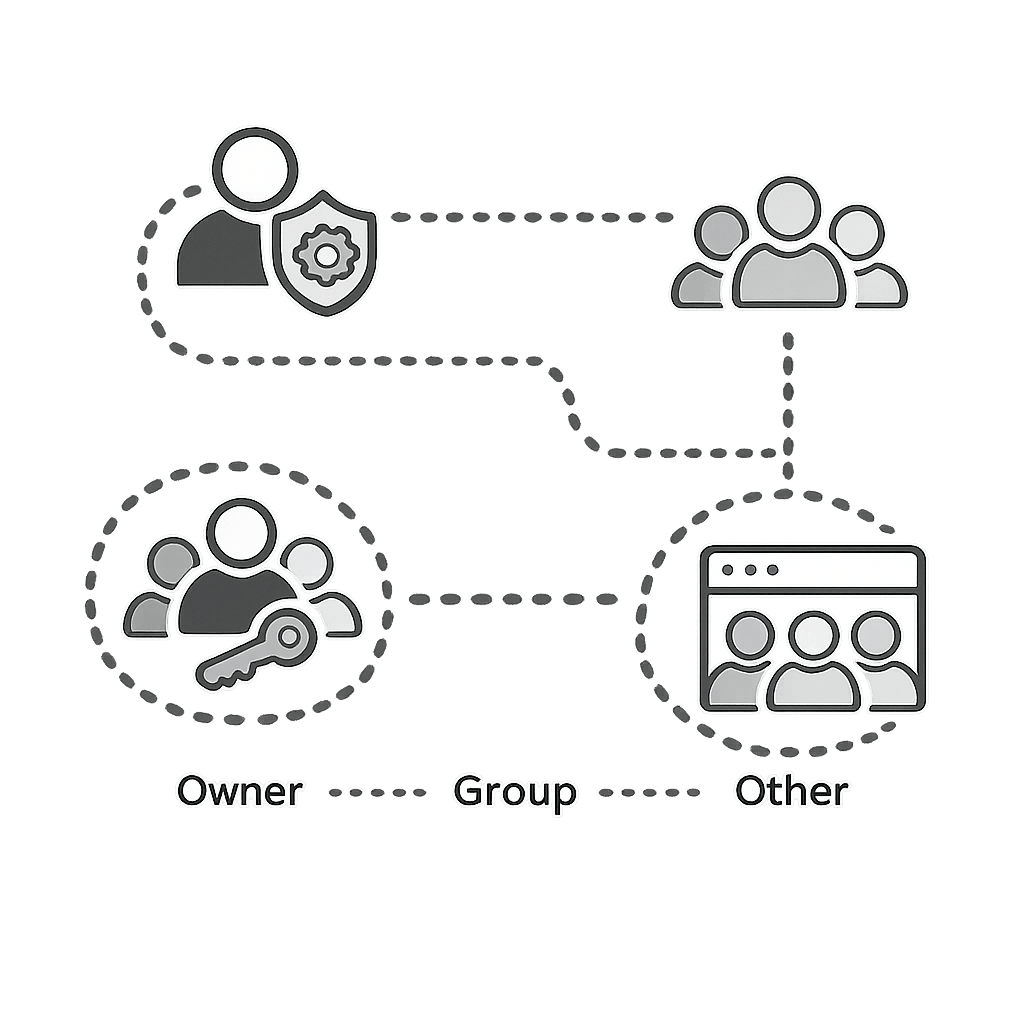
Every file and every running program in Linux belongs to a user. Users can be organized into groups so they can share access to the same files and folders.
- User — An account that can log in and run commands.
- Group — A collection of users who share the same permissions.
- root — The superuser (administrator) with full control.
- sudo — Run a single command as root without logging in as root.
Types of users
Linux has three types of user accounts:
| Type | UID | Description |
|---|---|---|
| root | 0 | The administrator. Has full power over the system. Don't use it for daily work. |
| System users | 1–999 | Used by services like web servers (www-data). They usually cannot log in. |
| Regular users | 1000+ | Normal people. Each gets a home directory and can log in. |
How to check: Run id to see your own UID, GID, and groups. Run id alice to check another user.
Managing users
You need sudo for all of these because they change the system. Here are the most common user management commands:
| What you want to do | Command |
|---|---|
| Create a new user | sudo adduser alice |
| Set or change password | sudo passwd alice |
| Add user to a group | sudo usermod -aG developers alice |
| Lock account (disable login) | sudo usermod -L alice |
| Unlock account | sudo usermod -U alice |
| Delete user and their home folder | sudo deluser --remove-home alice |
Managing groups
Groups let you share access to files and folders. For example, everyone in the developers group can access the same project folder.
| What you want to do | Command |
|---|---|
| Create a group | sudo addgroup developers |
| See which groups a user is in | groups alice |
| See members of a group | getent group developers |
| Add a user to a group | sudo usermod -aG developers alice |
| Remove a user from a group | sudo gpasswd -d alice developers |
| Rename a group | sudo groupmod -n newname developers |
| Delete a group | sudo delgroup developers |
Using sudo and switching users
sudo lets you run one command as root. This is safer than being root all the time because you only use admin power when you actually need it.
| Command | What it does |
|---|---|
sudo apt update | Run a single command as root. |
sudo -i | Open a root shell (for running many commands as root). Type exit to leave. |
su - alice | Switch to user alice (you need their password). Type exit to go back. |
su - | Switch to root (you need the root password). |
Safety tip: Never run random sudo commands from the internet without understanding them first. One wrong command as root can break your system.
Try it yourself (practical demo)
Open a terminal on your Linux machine (or WSL / VM) and follow these steps:
- Run
whoamiandidto see your current user. - Create a new user:
sudo adduser demouser(set a password when asked). - Create a new group:
sudo addgroup demogroup. - Add the user to the group:
sudo usermod -aG demogroup demouser. - Verify it worked:
groups demouser. - Switch to the new user:
su - demouser, then typeexitto come back. - Clean up:
sudo deluser --remove-home demouserandsudo delgroup demogroup.
whoami
id
sudo adduser demouser
sudo addgroup demogroup
sudo usermod -aG demogroup demouser
groups demouser
su - demouser
exit
sudo deluser --remove-home demouser
sudo delgroup demogroup
Useful commands (quick reference)
You will use these commands often when working with users and groups:
| Command | What it does |
|---|---|
whoami | Print your current username. |
id | Show your UID, GID, and all groups. |
groups | List groups you belong to. |
getent passwd | List all users on the system. |
getent group | List all groups on the system. |
Practice questions
Run whoami and id in your terminal. Write down your username, UID, and at least two groups you belong to.
Hint: Look for uid=, gid=, and groups= in the output of id.
Why is it better to use sudo for specific commands instead of logging in as root all the time?
Hint: Think about accidental mistakes, security, and keeping track of who did what.
Quiz
Test your understanding. Click an answer to see if it's correct.
1. What does the command whoami do?
It simply prints the name of the current logged-in user.
2. Which user has full control over a standard Linux system?
root is the superuser with permission to do anything on the system.
3. What is the purpose of the sudo command?
Use sudo when you need admin rights for a specific command.
4. Which command adds user alex to group developers?
usermod -aG appends a group without removing existing ones.