Linux File System
The Linux file system looks different from Windows. In this chapter you'll learn the main folders, how paths work, and how to think in terms of the Linux directory tree.
Introduction
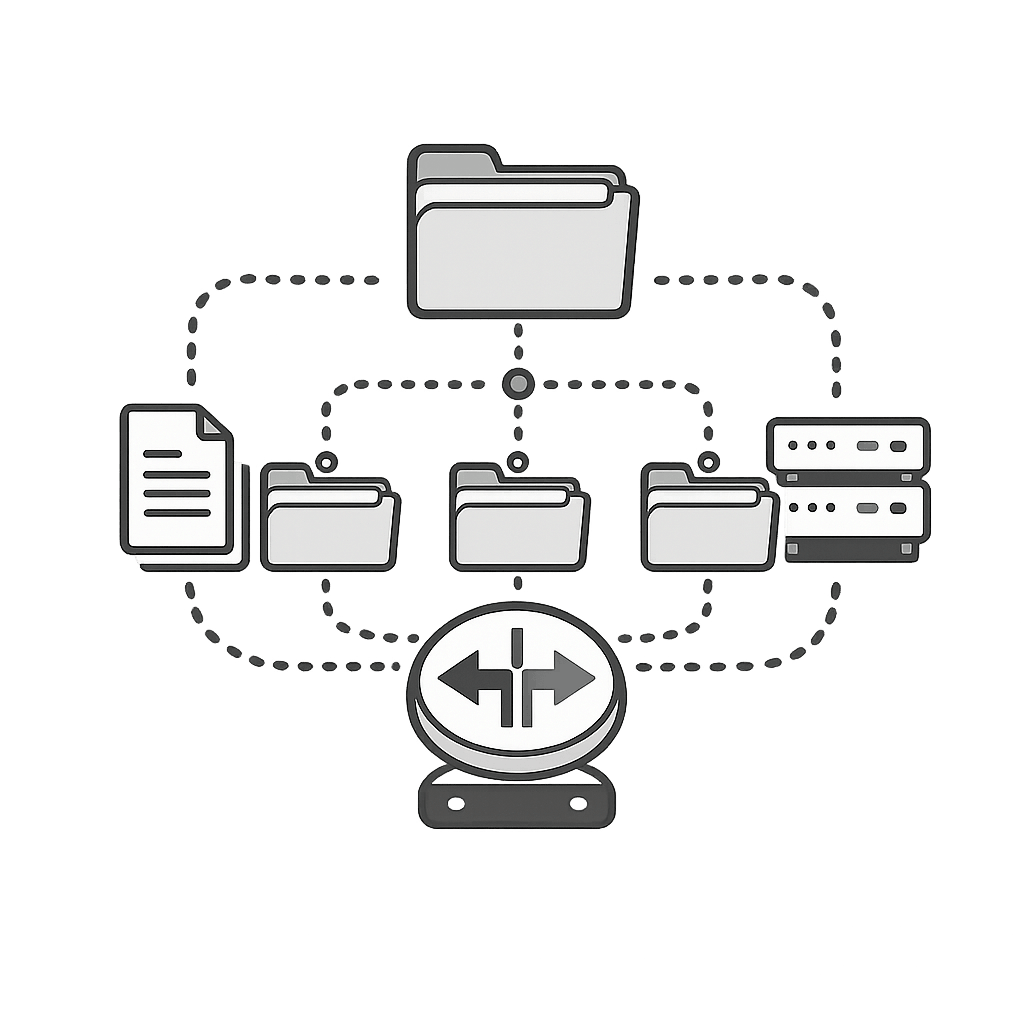
The Linux file system is organized as a single tree. Everything starts from root.
Single tree structure: In Linux there are no drive letters like C: or D:. Everything starts from a single root directory: /.
Important Linux directories
Here are some of the most common directories you will see on a Linux system:
| Directory | Description |
|---|---|
/ | Root of the entire file system tree. |
/home | Home directories for normal users (e.g. /home/alex). |
/root | Home directory for the root (administrator) user. |
/etc | System-wide configuration files. |
/bin | Essential user commands (ls, cp, mv, etc.). |
/usr/bin | Most installed user applications and commands. |
/var | Variable data like logs, caches, and queues. |
/tmp | Temporary files (often cleared on reboot). |
/dev | Device files (disks, USB devices, etc.). |
/mnt | Temporary mount points for additional file systems. |
Absolute vs relative paths
Paths describe where a file or folder lives in the file system:
| Concept | Example / Explanation |
|---|---|
| Absolute path | /home/alex/documents/report.txt – starts from / and includes the full path. |
| Relative path | documents/report.txt – relative to your current directory. |
Current directory (.) |
./script.sh – run script.sh in the current directory. |
Parent directory (..) |
../pictures – go to the pictures folder one level up. |
Your home directory
Your home directory (for example /home/yourname) is where you store personal files, code, downloads, and config. You usually have full control here.
Useful commands related to the file system
You will use these commands often when exploring the Linux file system:
| Command | What it does |
|---|---|
ls / | List the top-level directories under root. |
ls /home | List user home directories. |
cd /etc | Go to the system configuration directory. |
tree | Show directory tree (may need to install the tree package). |
df -h | Show disk space usage for file systems. |
du -sh * | Show size of each item in the current folder. |
Practice questions
From your terminal, run ls / and write down at least 5 directory names you see. What do you think each one is used for?
Hint: Look for /home, /etc, /var, /bin, /usr and guess based on their names.
Explain the difference between an absolute path and a relative path in your own words, with one example of each.
Hint: Think about whether the path starts from / or from your current location.
Quiz
Test your understanding. Click an answer to see if it's correct.
1. Which directory contains user home folders?
Your personal files live under /home/<username>.
2. Which of the following is an absolute path on a Linux system?
Absolute paths always start with / and describe the full location.
3. What is the purpose of the /etc directory in Linux?
Most configuration files for services and system settings live in /etc.
4. Which command would you use to see how much disk space is left on your file systems?
df -h shows disk usage in a human-readable format (GB, MB).